Connect via SMTP/IMAP
For any provider that doesn't offer OAuth — Amazon SES, Zoho, a custom domain mailbox, or a provider-agnostic sending service — SubsiMail connects directly with SMTP (to send) and, optionally, IMAP (to poll for replies).
When to use this
Use SMTP/IMAP when your sending inbox isn't a Gmail or Microsoft 365 mailbox. For Microsoft 365, prefer Outlook OAuth instead — it integrates more deeply and has no downside.
For Gmail it's a genuine choice, not a fallback: Gmail OAuth in Testing mode (the default) needs reconnecting roughly every 7 days — see why. Connecting Gmail here instead, using a Google App Password as the SMTP/IMAP password, avoids that entirely and is what most users end up doing for long-running campaigns.
What you'll need
An SMTP endpoint is required; an IMAP endpoint for the same mailbox is optional. Your provider's documentation will list these, usually under "SMTP/IMAP settings" or "third-party client setup":
From email address | The address contacts will see mail arrive from |
SMTP host / SMTP port | Typically port 587 (STARTTLS) or 465 (implicit TLS) |
SMTP username / SMTP password | Credentials for sending |
IMAP host / IMAP port | Optional. Typically port 993 |
IMAP username / IMAP password | Optional. Credentials for reading the inbox (stop-on-reply detection) |
Skipping IMAP is a real option, not just for providers like SES that lack an inbox at all — it's fine any time you don't need automatic stop-on-reply. The tradeoff: without it, a contact's reply won't stop their sequence, and Read Latest Email isn't available for that account. Sending itself, and pausing on a hard bounce/rejection, aren't affected — both happen at SMTP-send time, not through IMAP.
Connect in SubsiMail
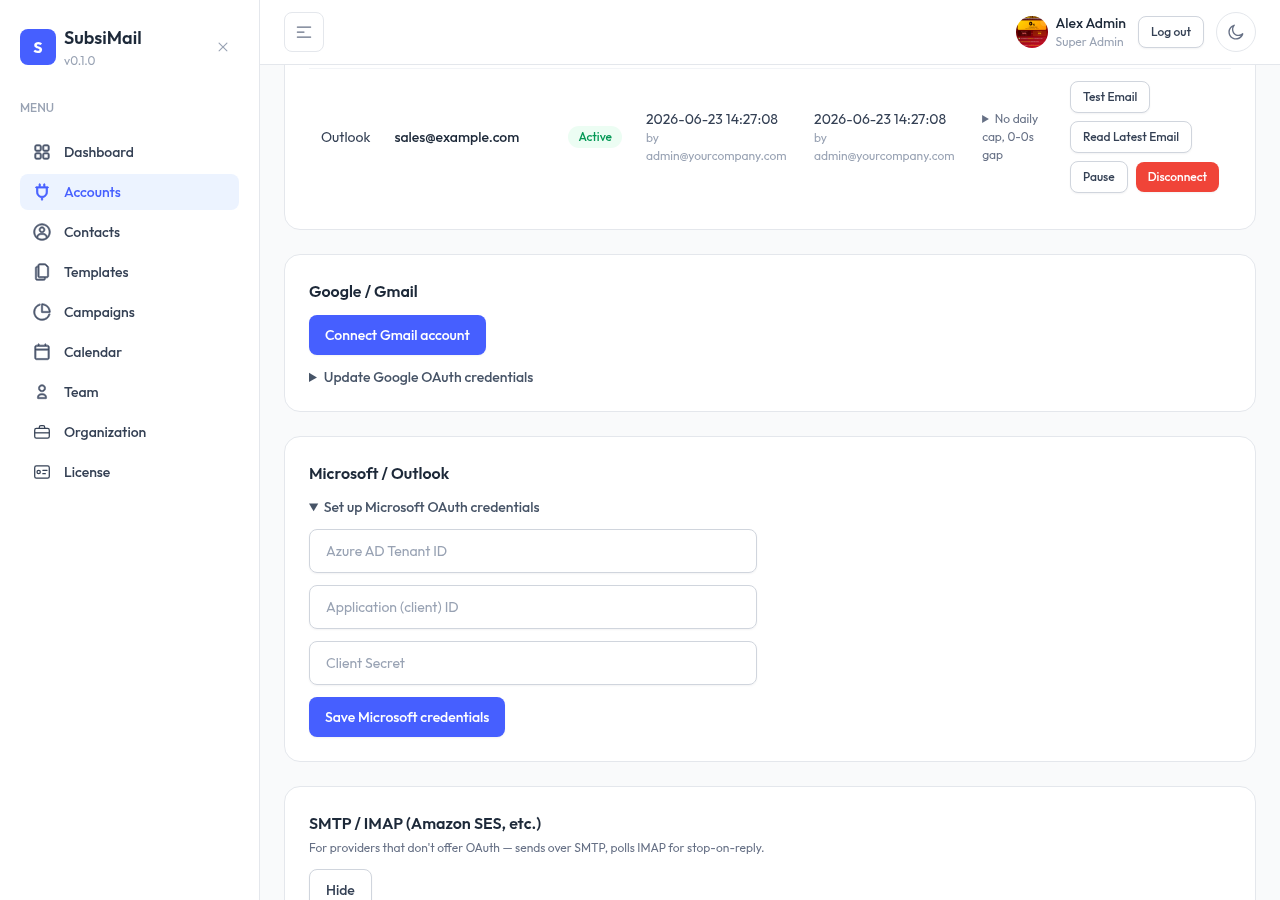
- Go to Accounts → SMTP / IMAP and click Connect SMTP/IMAP account to expand the form
- Fill in the SMTP fields; leave Also connect IMAP checked and fill in the IMAP fields too, or uncheck it to skip IMAP entirely
- SubsiMail tests the connection immediately — if SMTP (or IMAP, when included) login fails, you'll see the error before the account is saved
Example: Amazon SES
SES is a common SMTP/IMAP choice since it doesn't have its own inbox (you'd pair it with a separate IMAP-capable mailbox, or use it purely for sending with reply detection via another connected account). SES SMTP settings look like:
SMTP host: email-smtp.us-east-1.amazonaws.com
SMTP port: 587
SMTP username: (SES SMTP credentials, not your AWS access key)
SMTP password: (SES SMTP credentials, not your AWS secret key)
Generate SES-specific SMTP credentials from the SES console — they're different from your regular AWS IAM keys.