Managing contact lists
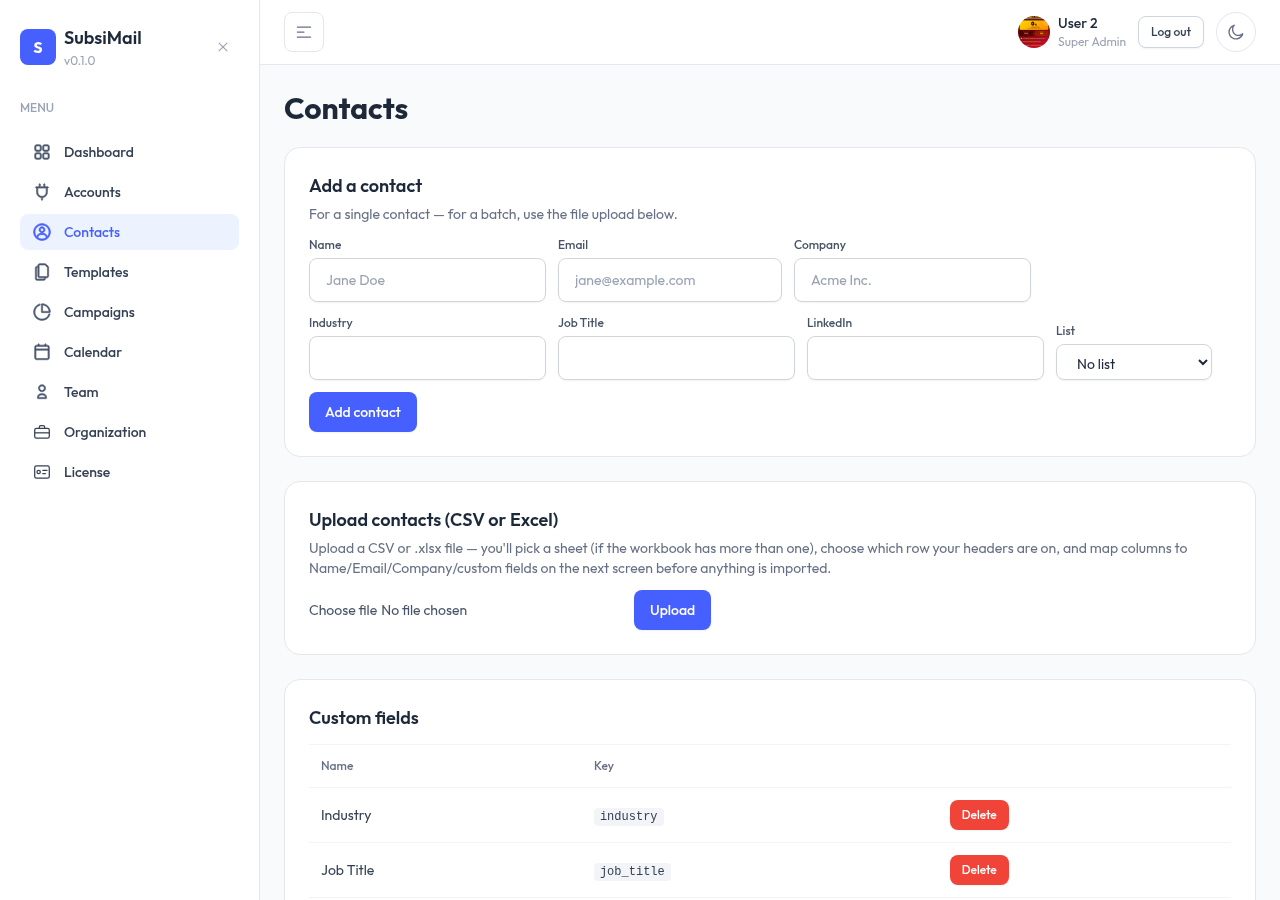
A contact can belong to any number of lists. Lists are how you segment who gets enrolled into a given campaign.
New in 8: lists belong to a workspace. Hard-bounced addresses are blocked across every workspace; unsubscribes and complaints apply only inside the workspace they came from.
Lists
Create a list from the Contacts page, filter the contact table by list to see who's in it, and add/remove contacts from a list individually or as part of a CSV import. A contact isn't required to belong to any list at all.
Custom fields
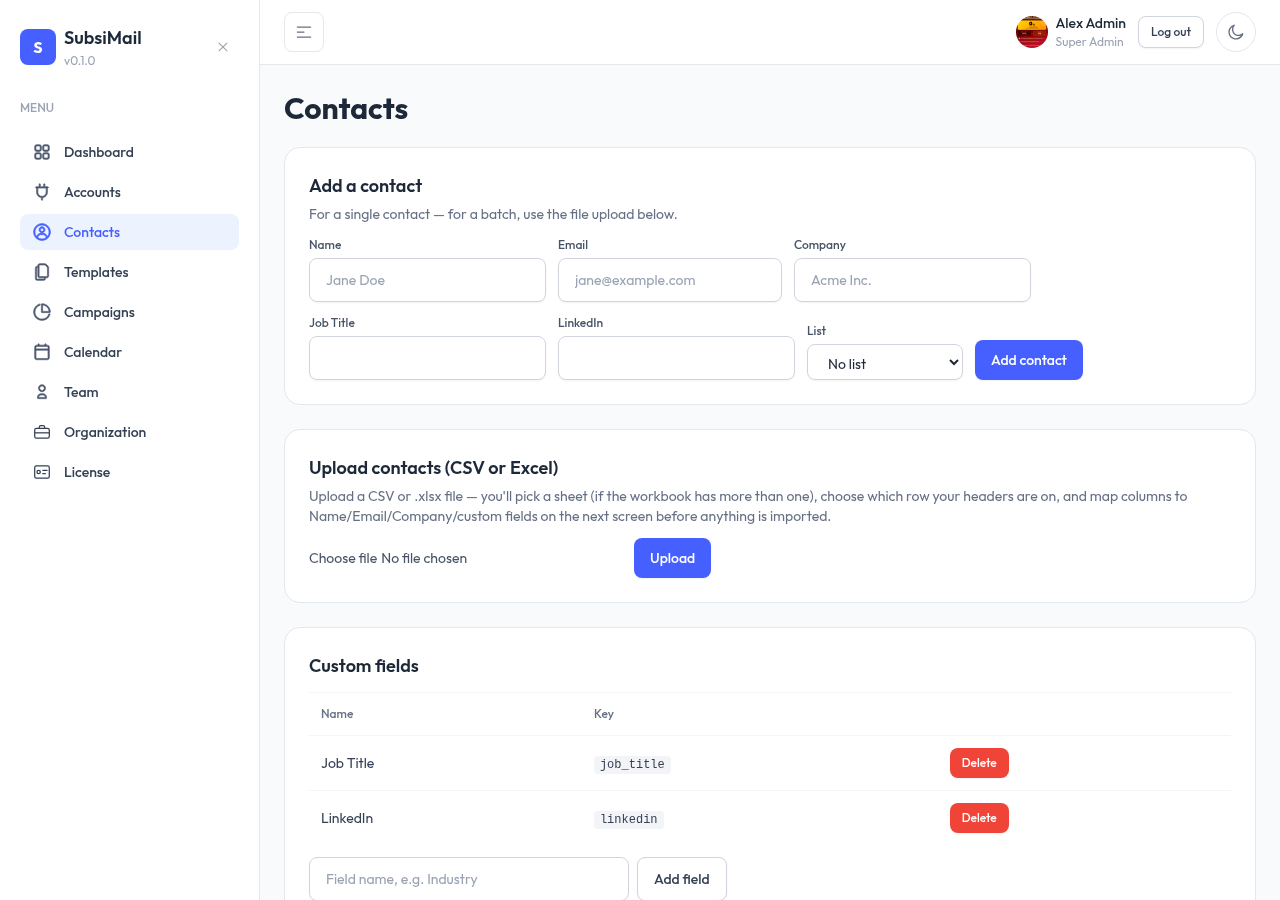
Custom fields (like Job Title or LinkedIn) are shared across all contacts, not per-list. Once defined, a field shows up as a mappable option on every future CSV import and on the manual add-contact form. You can add fields directly from the Contacts settings, or on the fly during import by choosing "Create new field" for an unmapped column. Field values are also available as merge tags in campaign templates, e.g. {{job_title}}.
Suppression list
Separate from regular lists, the suppression list is a permanent do-not-contact registry. Any email address on it is never enrolled into a campaign, even if it's manually added to a list or re-imported later. Add or remove an address from Contacts → Suppression list.