Smart Search
A search box in the top header, on every page, that understands a small query language for finding contacts — by name, by what they've done in a campaign, by list or custom field, or any combination. It's built to work two ways at once: type a query directly if you know the syntax, or use the point-and-click builder on the Smart Search page if you'd rather not.
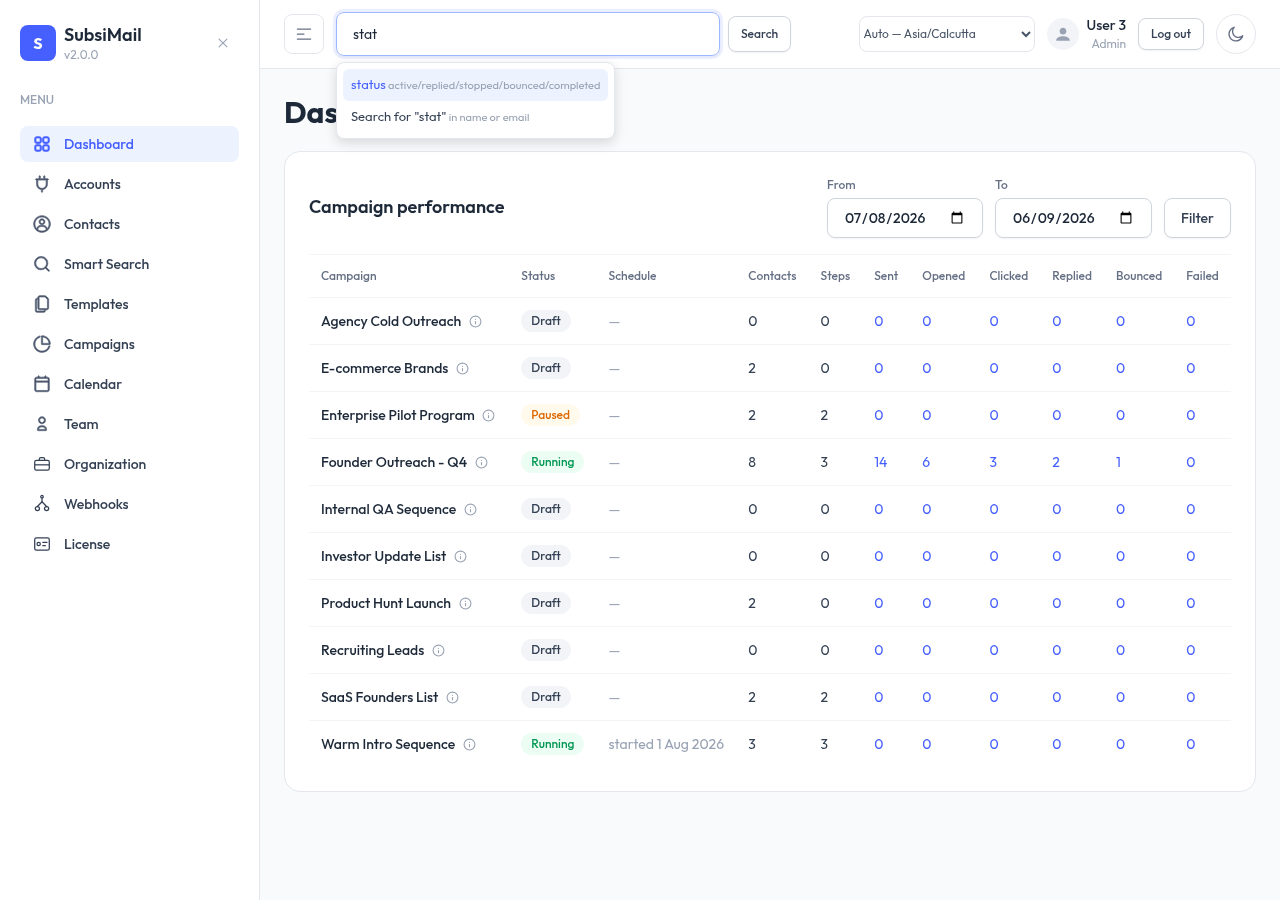
The basics
Just type a name or part of an email and hit Enter (or the Search button next to the box) — no special syntax needed:
sarah
"sarah chen"
A bare word or quoted phrase with no field in front of it searches name and email, the same as typing into any ordinary search box. Quotes are only needed once a value has a space in it — sarah and "sarah chen" both work, but a multi-word list or campaign name always needs them (see Fields).
To search a specific field, write field:value:
status:replied
company:"Acme"
Fields
| Field | Matches | Example |
|---|---|---|
name, email, company | substring, case-insensitive | company:"Acme" |
custom.<key> | a custom field's value, substring | custom.industry:"SaaS" |
list | list membership, exact name | list:"Q1 Prospects" |
campaign | enrolled in a campaign, exact name | campaign:"Founder Outreach" |
status | where they are in a campaign: active, replied, stopped, bounced, completed | status:replied |
sent, opened, clicked, replied, bounced, failed | whether that event ever happened — true/false | opened:true |
sent_at, opened_at, clicked_at, replied_at, bounced_at, failed_at, created_at | a date, compared with any of the operators | opened_at > "2026-01-01" |
suppressed | on the suppression list — true/false | suppressed:false |
archived | include archived contacts — excluded by default, same as the Contacts page's Active/Archived toggle | archived:true |
Field names and quoted values are case-insensitive throughout.
Operators
Every operator has a symbol and a word form — use whichever reads better, and mix them freely in the same query:
| Symbol | Word | Meaning |
|---|---|---|
: | is | equals / contains |
!= | is not | negation of the above |
> | gt | after (dates) |
>= | ge / gte | on or after |
< | lt | before |
<= | le / lte | on or before |
status:replied
status is replied
status != active
status is not active
Combining conditions
Join clauses with AND, OR, or NOT, and use parentheses to control how they group. Placing two clauses next to each other with nothing in between also means AND:
status:active AND opened:true
sarah status:active
status:active AND (clicked:true OR bounced:true)
NOT clicked:true AND status:active
Parentheses matter here the same way they do in any boolean expression — status:active AND clicked:true OR bounced:true (no parens) actually means (status:active AND clicked:true) OR bounced:true, which is a wider result set than status:active AND (clicked:true OR bounced:true). Wrap the OR in parens whenever you're mixing it with AND in the same query.
The visual builder
The Smart Search page (in the sidebar) has a "Build a search" card — pick a field, an operator, and a value from dropdowns, add as many conditions as you need, and choose whether to match all or any of them. It generates the exact query text shown live underneath, so it doubles as a way to learn the syntax.
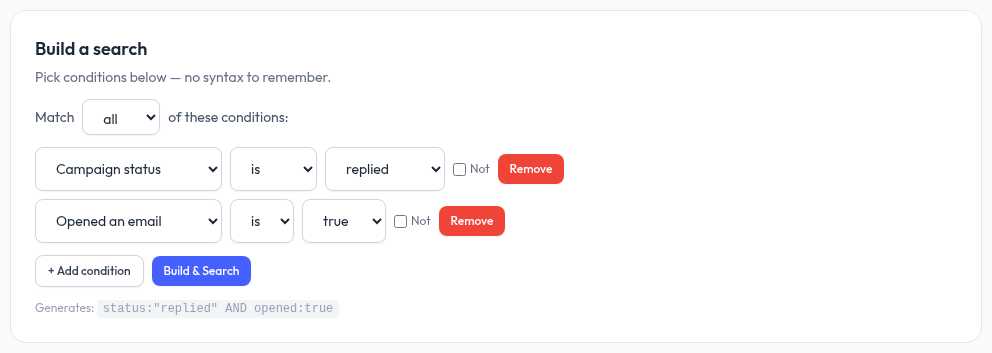
The builder and the search box stay in sync both ways: build a query and run it, and reloading that same page repopulates the builder with the exact conditions you picked; type a query directly into the header box instead, and the builder fills itself in to match — as long as it's a query the builder itself could have produced (one join operator throughout, no parentheses). A query too rich for that flat shape still runs fine, the builder just can't mirror it back visually.
Saved searches
Once you've run a query, a Save this search button next to it lets you name and keep it. Saved searches are listed on the Smart Search page and shared across your whole team — click one to re-run it instantly.
Examples
| Query | Finds |
|---|---|
sarah | Anyone with "sarah" in their name or email |
status:active AND opened is true | Currently active in a sequence, and has opened at least one email |
opened:true AND replied is not true | Opened something but never replied — a classic follow-up list |
list:"Q1 Prospects" AND NOT suppressed:true | On a specific list, excluding anyone suppressed |
custom.industry:"SaaS" AND created_at >= "2026-01-01" | A custom field match plus a date range |
archived:true AND list:"Old Imports" | Archived contacts on a specific list — normally hidden, this brings them back into view |
The same query language is also available over the REST API, for automating exactly what you can do here by hand.